
Single Sign-On (SSO) for Evolution and Validate

In September 2025, we introduced Single Sign-On (SSO) to our online business simulation and startup ideas platform, Evolution and Validate.
From September 2026, SSO will be the default sign-up method for users across all institutions/organisations using Evolution and/or Validate.
While SimVenture place no restrictions on SSO, it is possible that your local IT policy prevents SSO access to third party software until the application is listed with your IT department. However, the process to enable SSO is fairly straightforward and the SimVenture team are happy to help.
To verify SSO access, please follow the instructions within this blog.
What is Single Sign-On (SSO)?
SSO allows users to access the platforms securely and conveniently via the Microsoft Entra ID system and is handled to comply with security and GDPR regulations.
This sign-in method provides a very secure method of access using your students’ own organisational Microsoft account thereby removing any requirement for students to create a separate username and password.
With Evolution, you will be given a sign-up document that includes details on how your users can access the platform via SSO.
With Validate, you will be given a unique class link to share with your users. When the user attempts to sign up with this link, they will be taken to the Validate log-in page where they can “Sign in with Microsoft”.
Please Note: SSO setup is available to clients, although users won’t be able to switch login options mid-way through a course.
Verify SSO on Evolution

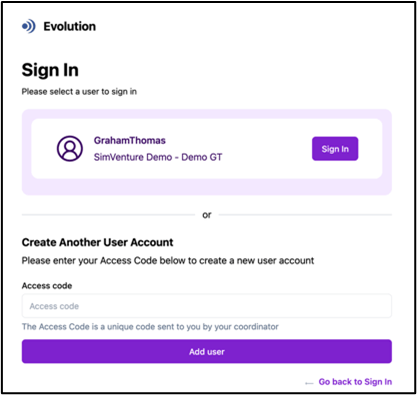
To verify SSO access on Evolution, follow the steps below:
- Sign into your University Microsoft account.
- Open the Evolution Sign-in page (https://server.simventure.co.uk/SimVenture) and click the link “Sign In with Microsoft”.
- You may see a webpage on Evolution asking for an access code in order to create an account. This indicates that SSO access does not currently require approval by an IT administrator and SSO should be unrestricted for your students (SSO works with your institution and you don’t need to take any further steps).
- If you see a “Need admin approval” message stating that “Evolution needs permission to access resources in your organisation”, this indicates that your organisation has a Microsoft ‘User consent blocked’ policy enabled.
- In this case, please contact your IT team and ask them to approve Evolution in your Azure portal. For any queries you can direct them to our technical team at support@simventure.co.uk.
- For further support, you can also contact us at evolution@simventure.co.uk.
Verify SSO on Validate
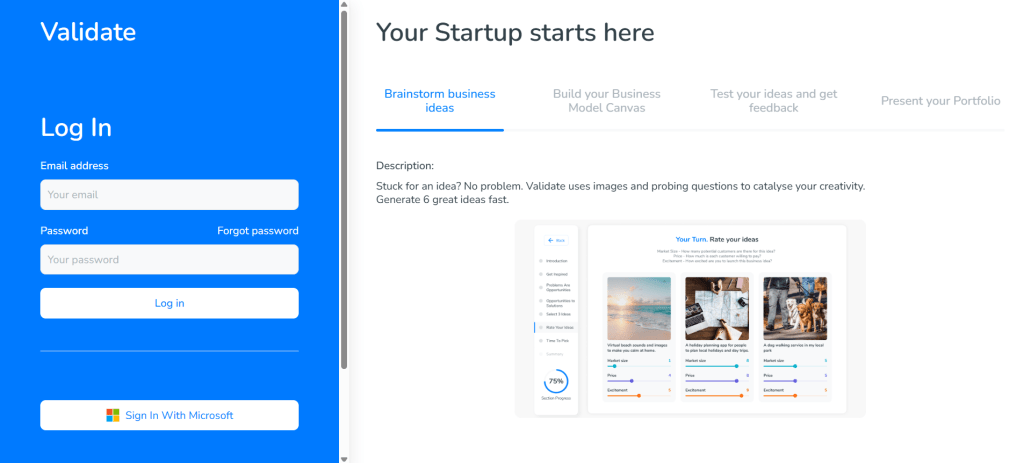
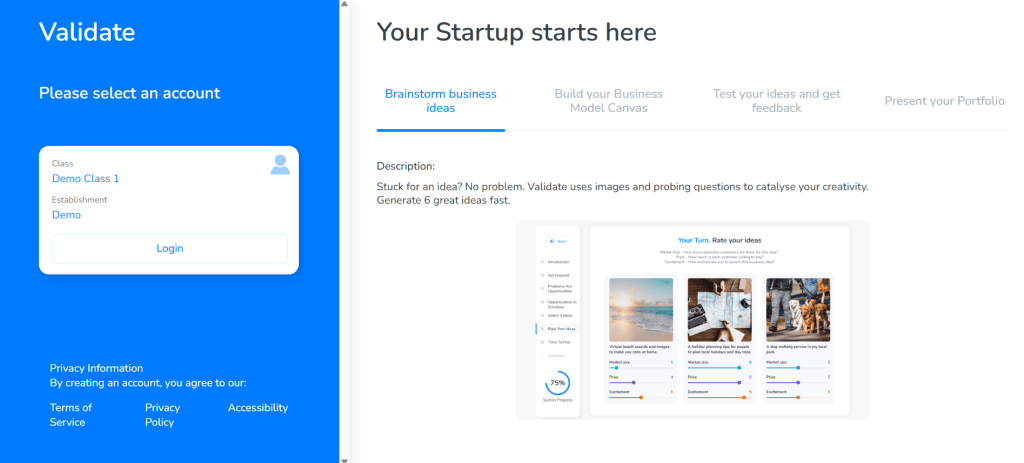
To verify SSO access on Validate, follow the steps below:
- Sign into your University Microsoft account.
- Open the Validate Sign-in page (https://app.validatestartup.com/onboarding/sign_in) and click the link “Sign In with Microsoft”.
- You may see a webpage on Validate asking to “Name your first project?”. This indicates that SSO access does not currently require approval by an IT administrator and SSO should be unrestricted for your students (SSO works with your institution and you don’t need to take any further steps).
- If you see a “Need admin approval” message stating that “Validate needs permission to access resources in your organisation”, this indicates that your organisation has a Microsoft ‘User consent blocked’ policy enabled.
- In this case, please contact your IT team and ask them to approve Validate in your Azure portal. For any queries you can direct them to our technical team at support@simventure.co.uk.
- For further support, you can also contact us at validate@simventure.co.uk.
Get in touch
Whilst Single Sign-on (SSO) is our preferred method for enabling student access to Evolution and/or Validate, we understand that SSO may not be suitable for all users, or there may be some other problems related to using this sign-in method.
If you have any questions, please don’t hesitate to contact us at evolution@simventure.co.uk or validate@simventure.co.uk. Additionally, you can also contact us at support@simventure.co.uk with any technical or urgent queries.